Work Packaging Module Navigation
Overview
The Work Packaging module is the central location for creating, organizing, and monitoring work packages in InEight Plan.
From the Work Packaging module, you can:
-
Build and manage your work packaging hierarchy
-
Import and export work package data
-
Access detailed work package pages
-
Assign and monitor planning activities and progress
Open the Work Packaging module
From within a project, you have two ways to access the Plan Work Packaging module.
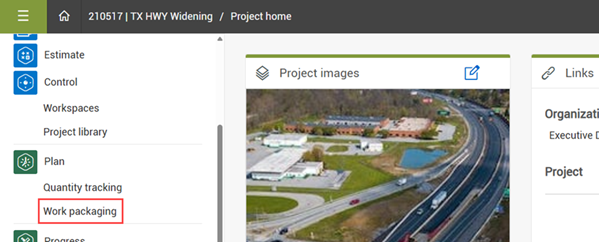
From the Project home page, select Work packaging from the left menu.
Navigate between module pages
The Work Packaging module contains two primary pages that support different functions of the work packaging process.
Work Packages
Use the Work Packages page to create, organize, and manage your work packaging hierarchy.
From this page, you can:
-
Create work packages
-
Import and export package data
-
Organize package relationships
-
Navigate package hierarchies
-
View package information in Grid view or Block view
Planning Schedule
Use the Planning Schedule page to schedule and monitor the work required to develop work packages.
From this page, you can:
-
Assign planning responsibilities
-
Monitor planning progress
-
View planning information in a Gantt chart
The Planning Schedule page tracks the progress of preparing work packages, not the progress of construction work. For more detailed information, see the Planning Schedule topic.
Work packages page layout
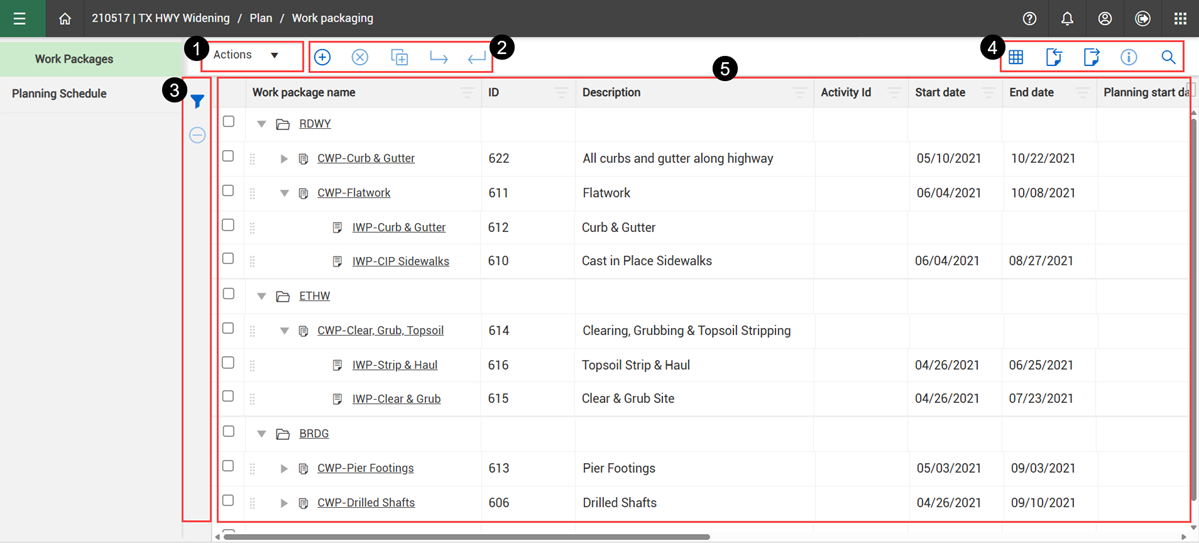
The Work Packages page contains the following main areas (see the image for reference):
|
|
|
|
|
1
|
Actions menu
|
Drop-down menu options to:
|
|
2
|
Left toolbar
|
Contains icons for adding, deleting, copying and moving work packages.
|
|
3
|
Query builder
|
Lets you add, edit, delete, copy and share queries for filtering work areas and packages. See Query Builder for more information.
|
|
4
|
Right toolbar
|
Contains additional tools for managing work packages:
|
|
5
|
Work package workspace
|
The main working area of the page where you can:
-
Expand and collapse hierarchy levels
-
View package information
-
Select and manage work packages
-
Open construction and installation work package pages
|
Manage work areas and work packages
In the workspace of the Work Packages page, you can add work packages to build out a hierarchy of construction and installation work packages under construction work areas.
Work areas
Work areas are the highest level of your work package hierarchy and are added and managed from the Project values page for the project. When construction work areas are added, they automatically show in the workspace of the Work Packages page.
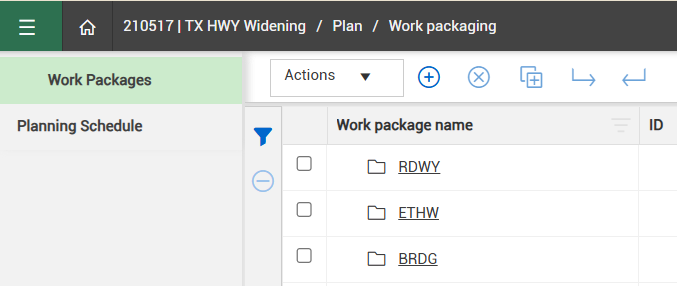
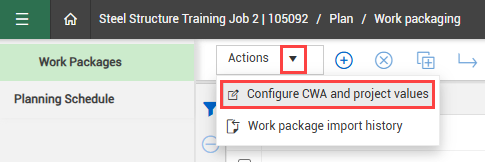
You can access the Project values page from the Project home page in the left menu, or directly from the Work Packages page by selecting Actions > Configure CWA and project values.
For more information on how to set up and use project values, including construction work areas, see
Defining Project Values.
Unassociated packages
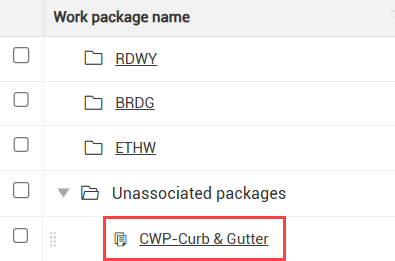
The Unassociated packages folder contains all construction and installation work packages that are not yet assigned to an area or package. When you first add a work package, the system assigns it to the Unassociated packages folder.
Add work packages
You can add a new construction or installation work package from the Add icon on the left toolbar.
-
Click the Add icon, and then select the type of work package to add.
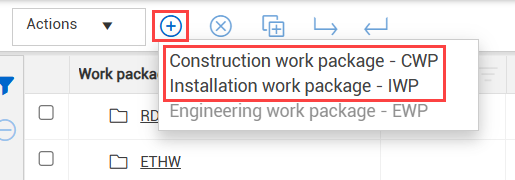
You can only use the Engineering work package - EWP option to associate EWPs from InEight Design with construction work areas (CWPs) in InEight Plan. For more information see Engineering Work Packages.
-
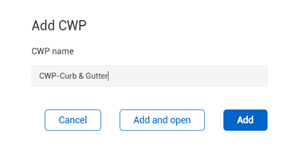
A dialog box opens where you enter the name of the work package, and then select either Add and open or Add.
-
Add and open creates the work package and opens its work package record.
-
Add creates the work package and remains on the Work packages page.
The system assigns the new work package to the Unassociated packages folder.
Delete or copy work packages
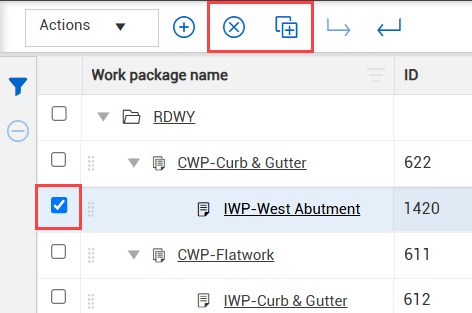
You can delete or copy work packages by selecting the check box for the work package and then clicking the applicable icon on the left toolbar.
You cannot delete a work area, but you can change its status to Unavailable on the Project values page. Changing its status removes it from where it is being used by other applications, including the Plan Work Packaging module.
Also, you cannot delete a construction work package that has a work package assigned to it (either installation or engineering).
Move work packages
You can move work packages to a different location in the hierarchy, which includes:
Move a work package
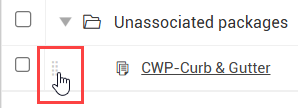
You can move work packages by dragging and dropping them to a new location.
-
For the work package you want to move, hover the cursor over its drag handle until it changes to the grab cursor symbol.
-
Click and drag the package over to the area or package where you want to assign it.
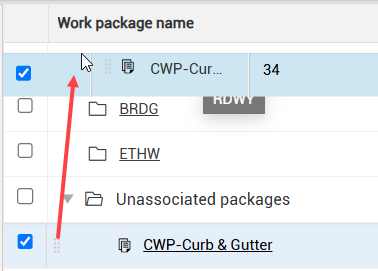
-
Drop the package on the area or package. An arrow shows next to the area or package you dropped it on, indicating you can expand it.
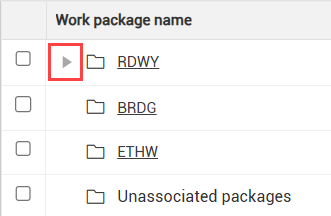
-
Click the arrow to expand the area or package. The package you moved is now assigned to it.
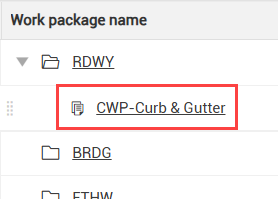
Move IWPs in and out of CWPs
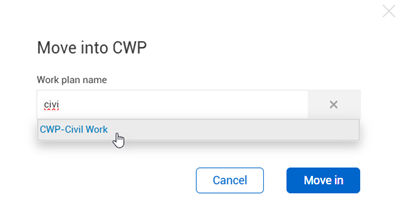
You can move installation work packages (IWPs) in and out of construction work packages (CWPs) using the Move into CWP and Move out of CWP icons on the left toolbar.
To do so, select the check box of the IWP you want to move, and then click the applicable icon.
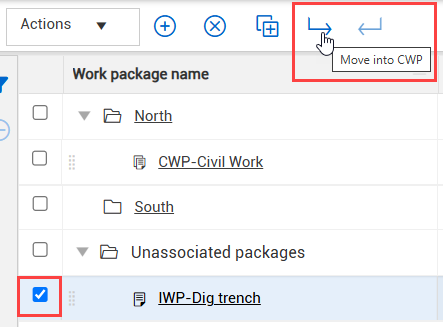
When moving an IWP into a CWP, dialog box appears for you to indicate which CWP you want to move it into.
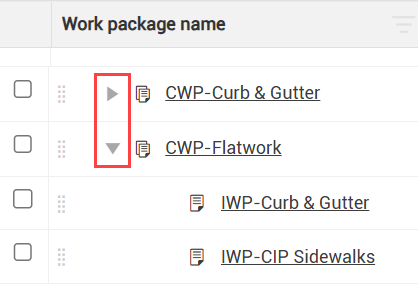
Expand or collapse work package hierarchy
Use the arrow icons to expand or collapse work areas and packages.
View work package details
Open a detailed work package page
Select the linked name of a work area or work package to open its corresponding page, where you can view detailed information for that area or package. See the related topic in the Knowledge Library for more information about each work package page type,
Show package details
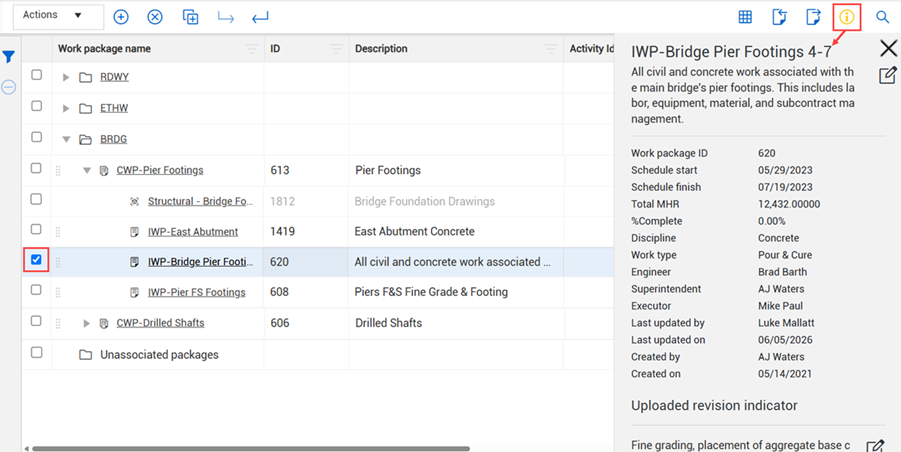
You can open a detailed slide-out summary of a work package from the Work Packages page by selecting the check box of a work area or package and then selecting the Show details icon on the right toolbar.
This provides quick access to key package information without opening the package page.
Grid view and Block view
There are two ways to view your hierarchy in the Work Packages workspace:
Grid view
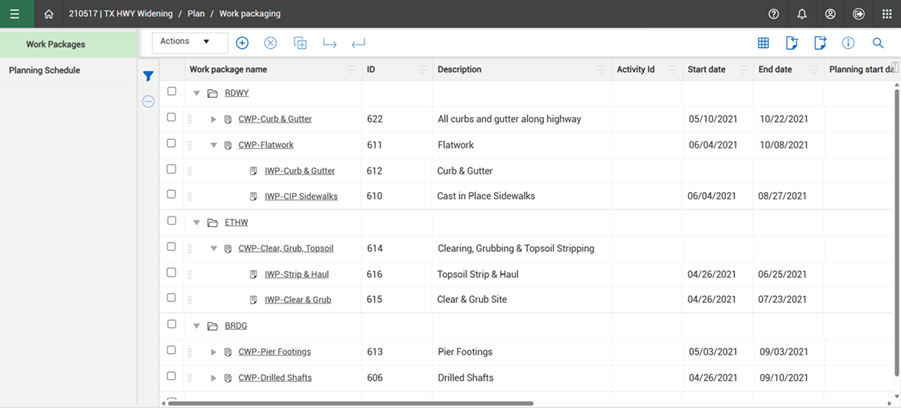
Grid view shows your work package hierarchy in a tabular format. The Grid view is the default view of the Work Packages page. If you are in Block view, you can return to Grid view by clicking the Grid/Block view icon on the right toolbar.

Use Grid view when you want to:
The Grid view shows detailed information such as:
-
Planning start and finish dates
-
Percent complete for man-hours and costs
-
Status
-
Type of work
-
The engineer, executor, and planner for the package
See Columns for more information.
Block view
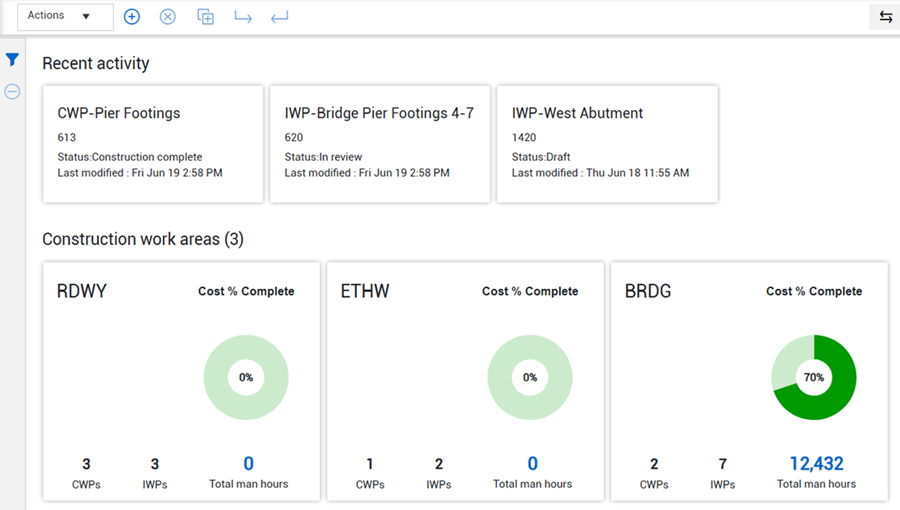
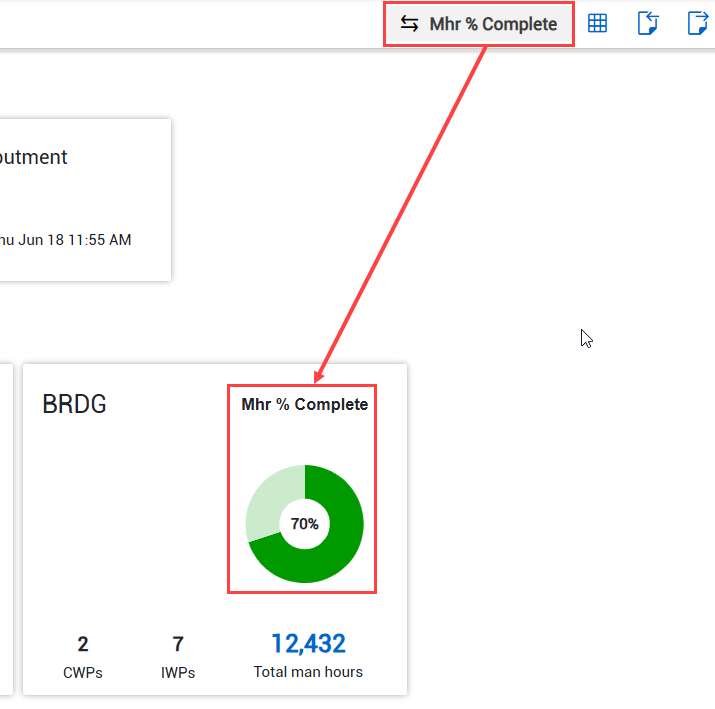
The Block view shows records as cards that summarize key information. To change to Block view, click the Grid/Block view icon on the right toolbar.
At the highest level of the hierarchy, the Block view includes:
The Block view also has a button next to the right toolbar to toggle between showing man-hour % complete and cost % complete on the work area and package cards.
Navigating the Block view
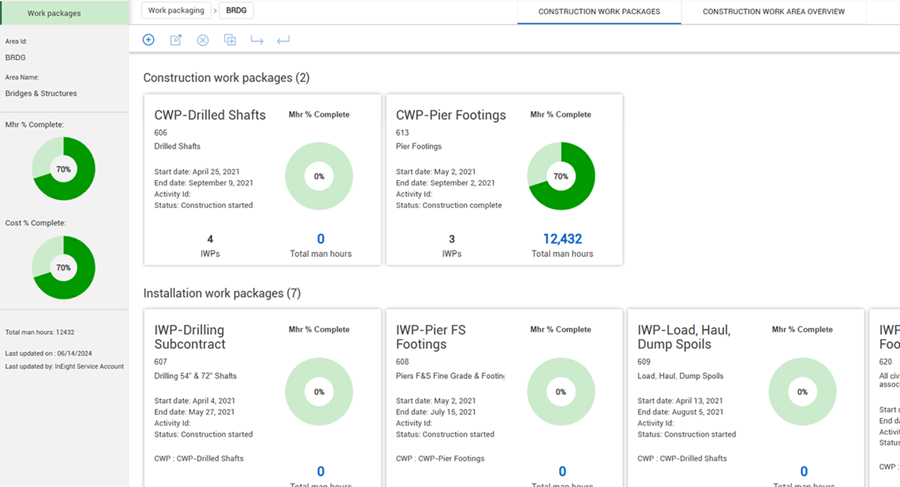
Click a construction area card to open a block view of the Construction area record, with cards for each construction and installation work package.
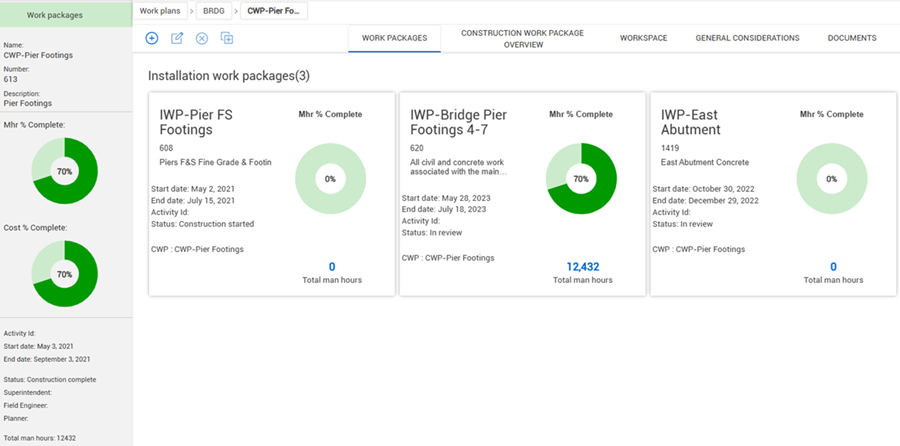
Click a construction work package card to open to its Construction work package page, with a card for each assigned installation work package.
Engineering work packages assigned to the construction work package do not show in the Block view.